Fingerprint Authentication with Ubuntu 24.04 on my HP Envy Notebook

Recently, I wanted to enable fingerprint authentication on my HP Envy notebook running Ubuntu 24.04. LTS. It was quite an exhaustive process, as I spent a good amount of time digging through documentation and forums. This post is intended as a detailed record for myself (and anyone else who might be struggling with the same issue).
The Challenge
I have the following fingerprint sensor in my HP envy notebook: 0c4c Elan Microelectronics Corp. ELAN: ARM-M4 – revealed using sudo lsusb
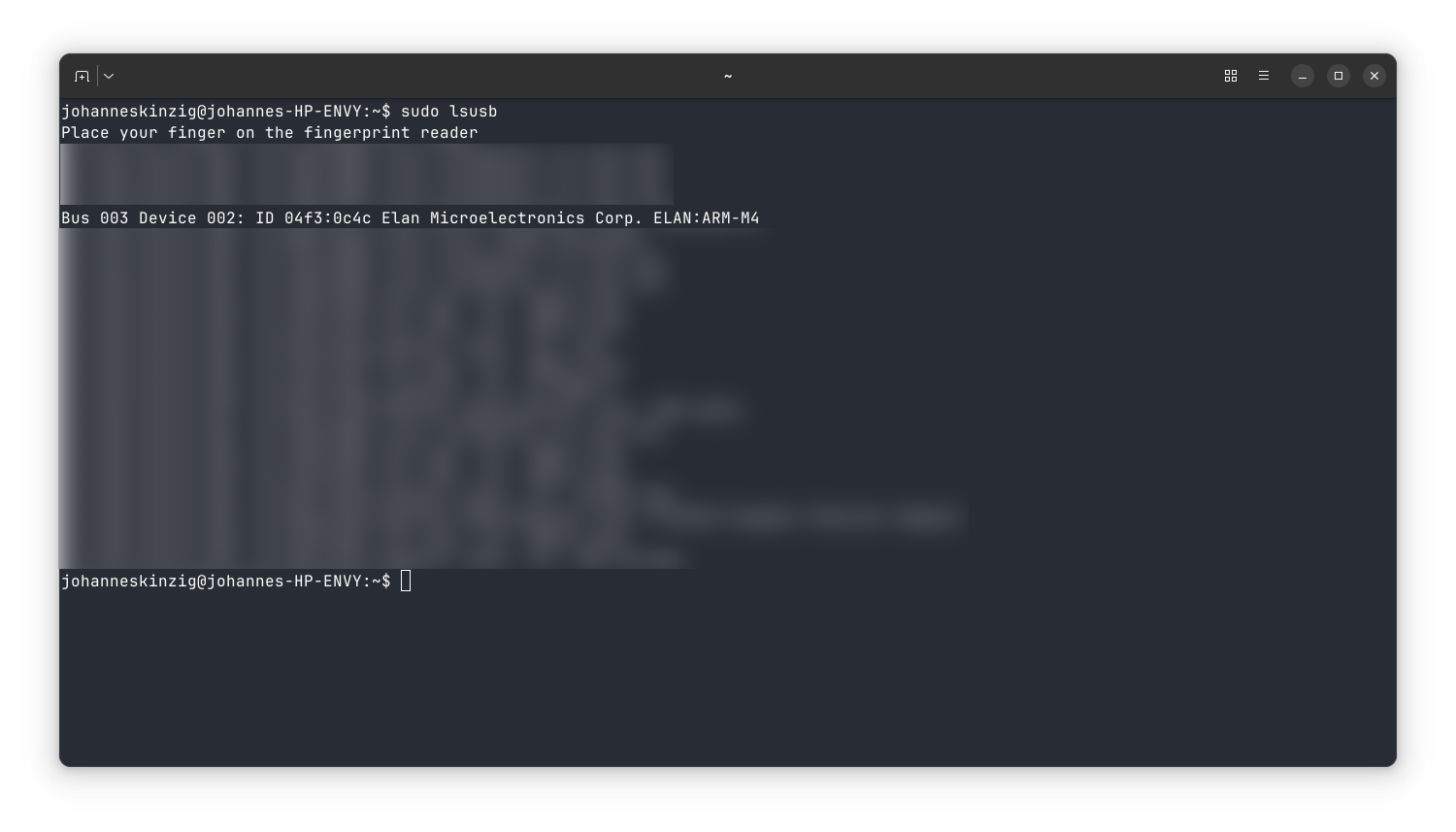
Many HP Envy notebooks (and notebooks from other manufacturers) use this ELAN fingerprint sensor which is not supported by the stock libfprint version shipped with Ubuntu 24.04 LTS (at least at the time of writing).
The solution is to build and install a modified libfprint fork that contains support for this sensor.
Resources – Where I Found the Answers
Before diving into the technical steps, here are the resources that proved invaluable:
- Arch Wiki - fprint: https://wiki.archlinux.org/title/Fprint – An overview about enabling fingerprint authentication in Arch Linux.
- libfprint GitLab Repo: https://gitlab.freedesktop.org/depau/libfprint – Repository for libfprint fork which includes patches for the ELAN 0c4c the fingerprint sensor.
- GitLab Merge Request (Crucial Note):https://gitlab.freedesktop.org/libfprint/libfprint/-/merge_requests/330#note_1718869 – This merge request contains specific instructions about how to build the fork from source.
A big thanks goes to https://gitlab.freedesktop.org/depau for adding support to libfprint for the 0c4c sensor and to https://gitlab.freedesktop.org/bugaevm who described how to build it from source under Fedora.
Installation & Configuration Steps
Let’s walk through the process step-by-step:
1. Install Dependencies
sudo apt-get install meson glib-2.0 libgusb-dev libgirepository1.0-dev libcairo-dev libpixman-1-dev cmake libnss3-dev libgudev-1.0-dev gtk-doc-tools gdb valgrind git openssl libssl-dev
This installs all the necessary build tools and libraries. Check any errors during this step – they might indicate missing dependencies on your system.
2. Clone the libfprint Repository
git clone https://gitlab.freedesktop.org/depau/libfprint.git
cd libfprint
3. Switch to the Elan Branch
git switch elanmoc2
git fetch && git pull
This ensures you’re using the correct branch for your sensor.
4. Compile and Install libfprint
meson setup builddir && cd builddir
meson compile
meson test
sudo meson install
This compiles the libfprint library and installs it to your system.
5. Update ldconfig
sudo echo '/usr/local/lib/' >> /etc/ld.so.conf.d/local.conf
sudo ldconfig
This step is crucial to ensure that the linker can find the newly installed libfprint libraries.
6. Restart fprintd Service
sudo systemctl restart fprintd.service
Restarting the service forces it to use the new libfprint installation.
7. Finger Enrollment
fprintd-enroll $USER
This initiates the fingerprint enrollment process. Follow the prompts to scan your finger(s). You can also use GNOME settings (if available) to manage fingerprint enrollment: Open Settings → Users → Fingerprint Login and enroll one or more fingers.
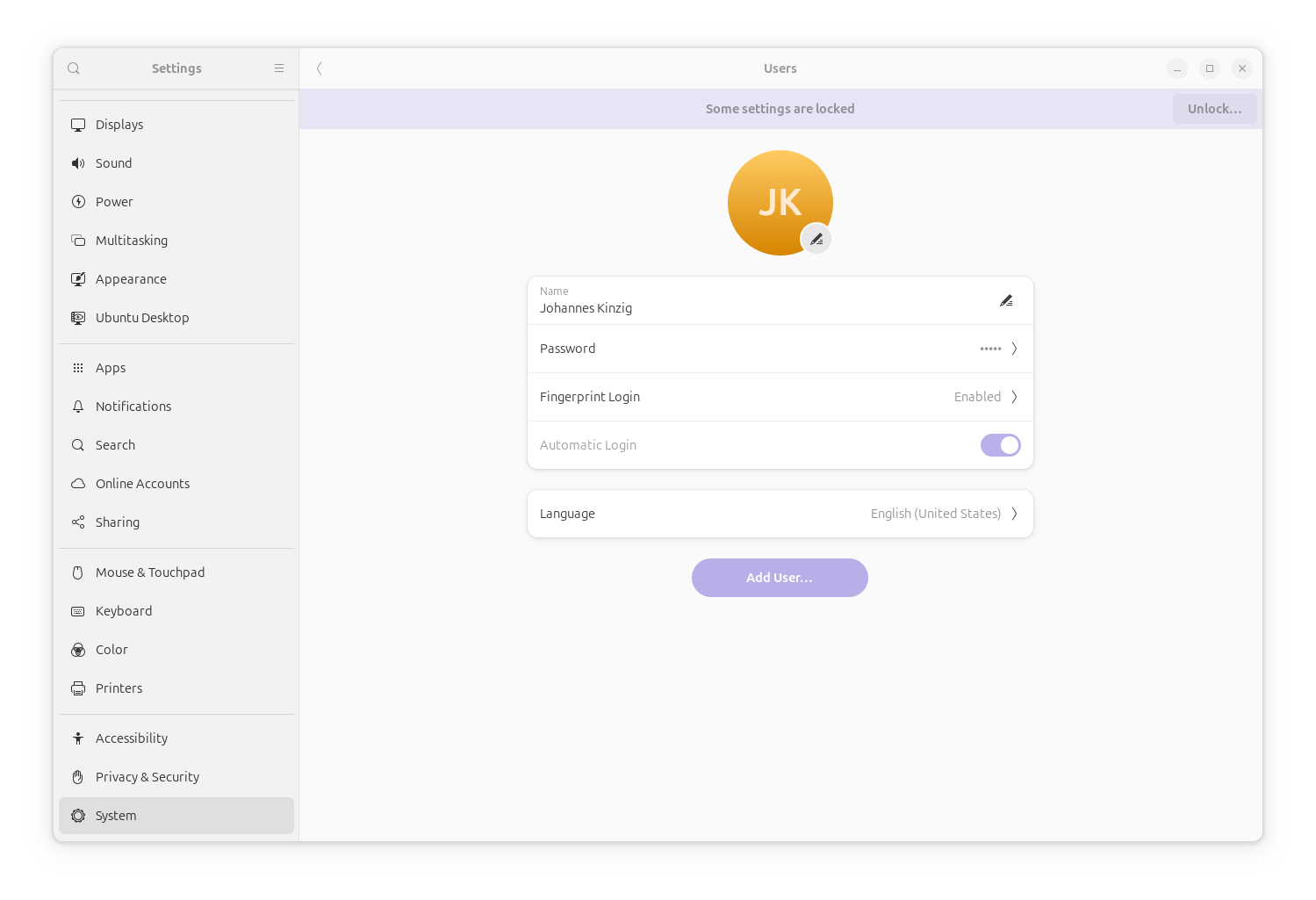
8. Configure PAM Authentication
sudo pam-auth-update
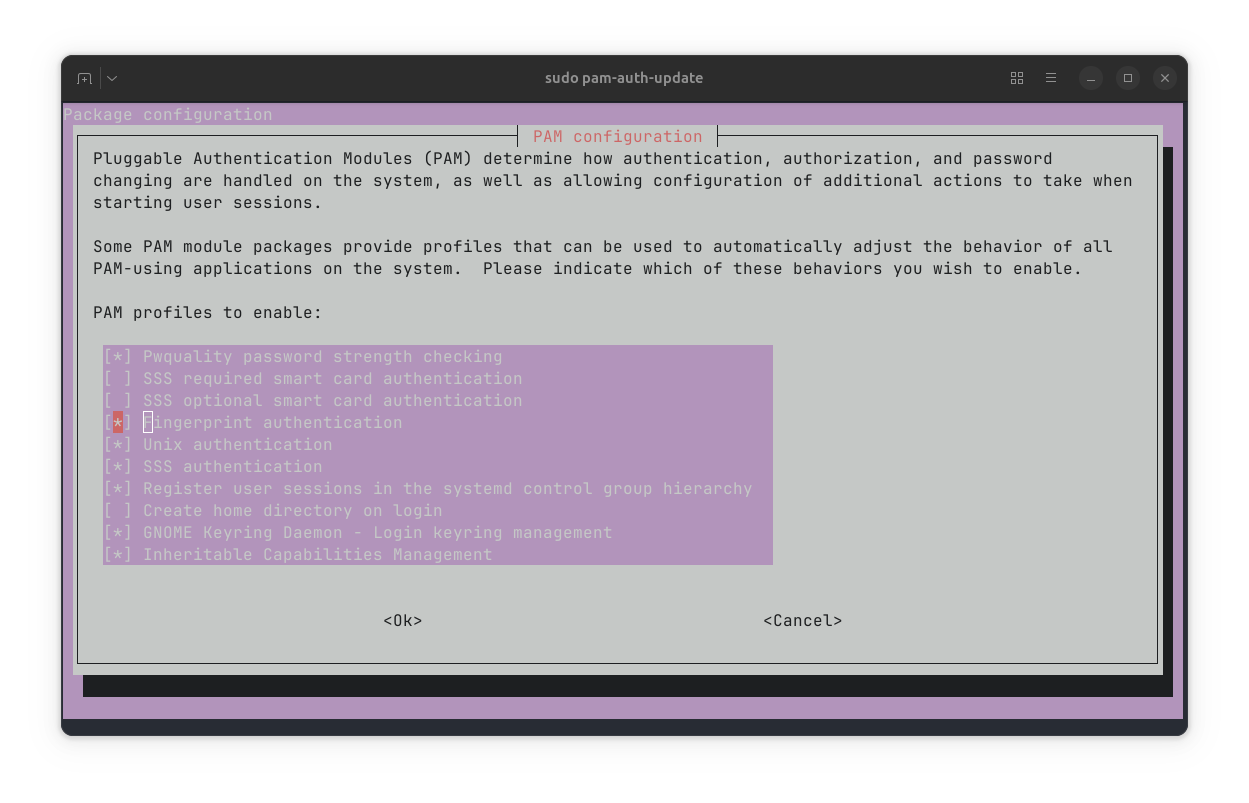
This is the final step to enable fingerprint authentication on your system for your user account. In the PAM configuration, select fingerprint as one of the authentication methods.
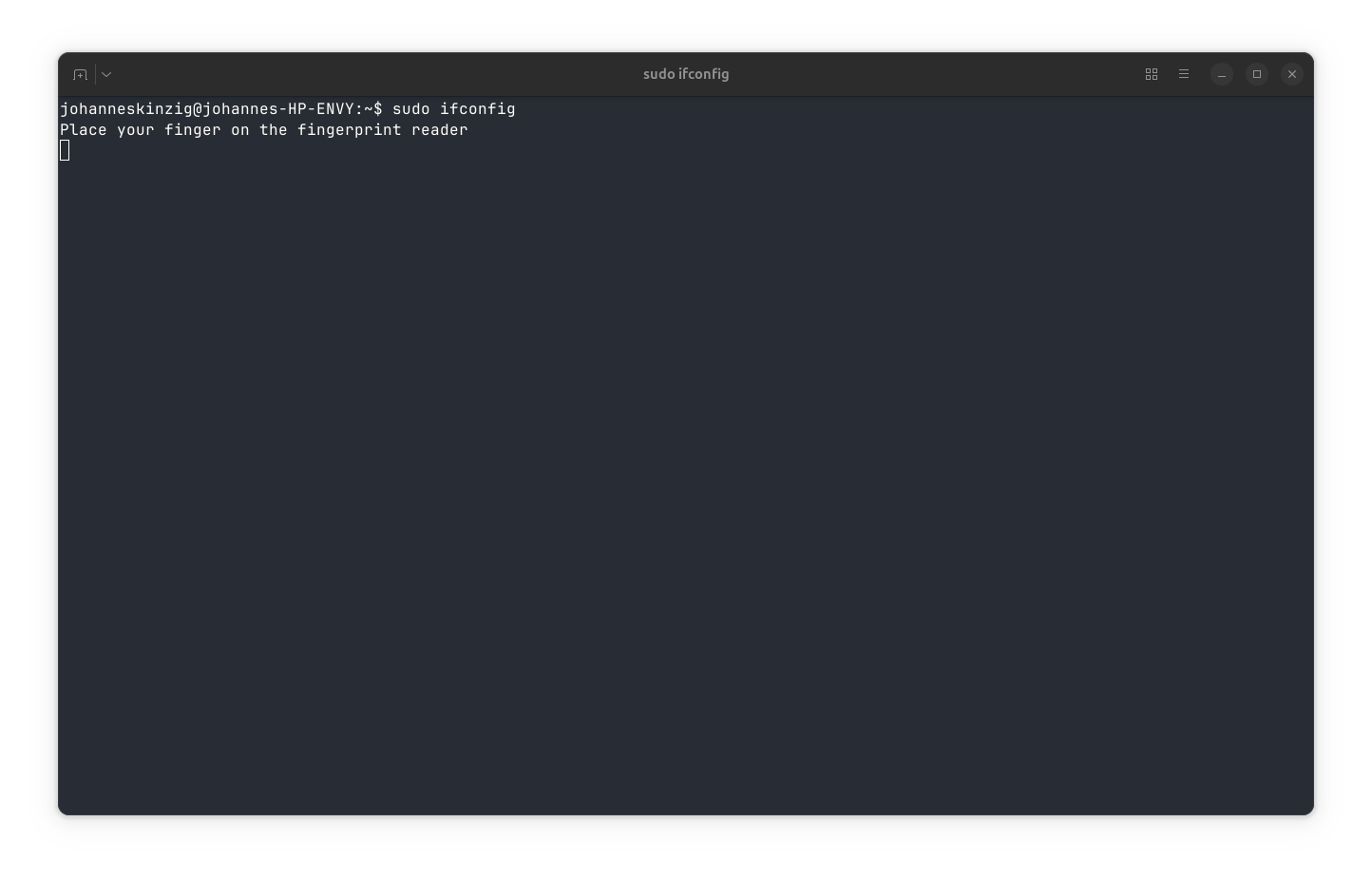
PAM stands for Pluggable Authentication Modules. In this case, we’re using it to allow our Ubuntu system to recognize and use the fingerprint sensor for authentication. PAM is a flexible framework that lets you configure how users are authenticated – essentially, it tells your system to accept fingerprint logins alongside traditional passwords. E.g. try typing sudo in your terminal before and after enabling fingerprint in PAM. After enabling it, you don’t need to type your password, you can use your fingerprint instead.
Troubleshooting & Considerations
- Sensor Detection: If
sudo lsusbdoesn’t show your sensor, double-check that the sensor is enabled in your BIOS/UEFI settings. - Finger Enrollment: In case your fingerprint sensor is detected but finger enrollment fails, try erasing the fingerprint storage in your BIOS/UEFI.
Final Notes
Setting up fingerprint authentication on my HP Envy notebook with libfprint requires a bit of effort, but it’s definitely achievable. Caution: This approach overrides Ubuntu’s default libfprint, so future system updates may break fingerprint support. If something stops working after an update, rebuilding libfprint is a good first step.
📬 Stay in the loop?
If you’d like to stay up to date with future technical guides and project insights, subscribe to my newsletter. I share practical knowledge, lessons learned, and updates – no spam, just content for developers and engineers.